Disclaimer
This
guide was made with android users running WhatsApp Version 2.9 in mind,
although not intended for iPhone and Blackberry users the same general
principles apply and the information here is mostly transferable.
With the introduction of Blackberry Messenger a new era of instant
messaging was ushered, but with the decline the hold of RIM (Research In
Motion) on the Smartphone market share consumers have looked for an alternative
and they found, WhatsApp.
WhatsApp has been around for a while but only just recently gained
popularity, but some people seem to be having a hard time understanding how it
works. Here’s a quick guide to understanding how to get best out of the
WhatsApp.
Adding Contacts
With Whatsapp you don’t need to send a friends request to chat with
someone, the application scans you phone contacts and automatically populates your
WhatsApp contact list with contacts saved on your phone that have installed
WhatsApp at some point in time. It also updates the list frequently, so if a
friend of yours just recently installed the WhatsApp they will be made
available for you to chat with on WhatsApp automatically. Pretty neat, huh?
A person will only appear on your WhatsApp contact list if their number
is saved on your phone. If your number isn’t saved on the recipient’s phone you
may still IM them but your name will on appear on top of the chat box, rather
your phone number will appear where your name should be.
WhatsApp Home
Screen – ‘Chats’
WhatsApp home screen or Start-up screen is the page displaying all your
recent chats with people in your contact list. To the top right corner you will
see two icons, one shaped like a magnifying glass and the other a speech bubble
with a plus sign. The speech bubble icon will give you a list of all your saved
phone contacts that have installed and activated WhatsApp on their line, while
the magnifying glass icon is to search the for mentioned list for a specific
contact.
Updating your
Display Image and Status Message
The WhatsApp ‘chats’ screen is also where you can access the main menu
to change you status message and your display picture.
To change your status message press your potions key, then tap the
status icon. You will be taken to a screen which will show you “Your currents
status...” and a list of suggested and previously used status messages. To
change your display image go back to the WhatsApp ‘Chats’ screen, press your
options key, tap the ‘settings’ icon then tap ‘Profile’. You will be able to
change your WhatsApp display image and ‘Name’, please note that your ‘Name’ is
only visible to iOS devices.
Unlike on Blackberry Messenger recipients cannot save someone’s display
image on to their phone.
Chatting
Chatting on WhatsApp is rather straight forward, just select the contact
you want to chat with, type your message and tap the ‘send’ button. The message
sending process has three stages, the first of which is indicated by the grey
clock-like icon that appears momentarily at the bottom left area of your
message bubble. This indicates that the message is waiting to be sent to the
WhatsApp server. If this icon lingers it means you are experiencing poor data
connectivity. The next stage is when this grey circle changes to a green tick,
this means that the message has been successfully delivered to the WhatsApp
server but not delivered to your recipient. If this icon persists your
recipient may be experiencing poor data connectivity, or may have switched
their ‘background data’ off – more on this in WhatsApp 201. The last stage is
when the single tick icon becomes a ‘double ticked’ this means that the message
has been successfully delivered to the recipients device, but does not
necessarily mean that the recipient has read it.
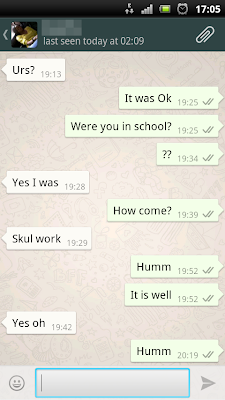

The grey
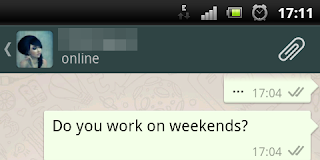
bar at the top of the chat window gives a bit of handy information apart from
the name and display image of the person you’re talking to. It tells you the
last time your contact was active on WhatsApp and also if your contact is typing
a message to you or is actively using WhatsApp, the grey bar would show
‘typing...’ on ‘Online’ respectively.
Viewing a
Contact’s Profile and Display Image
To view a
contacts profile select a contact, while in the contact chat-window tap the
contacts name and you will be taken to the ‘Contact Info’ tab, alternatively
you can press your options key while in the contact chat-window, and tap ‘View contact’.
Here you will be able to view the contact’s name (as saved on your phone),
display image, status message, recent media that has been exchanged between you
and the contact, and also the phone number or numbers the contact uses for
WhatsApp.
To view
the contact display image, simply tap the thumbnail of the contacts display
image and it will be blow up to fit your screen, the recipient cannot
however save someone else’s display image to their phone.
Sending Attachments
(Pictures, Video, Audio, Location Markers & vCards)
In an active chat session you’ll notice an office pin like icon to the
top right corner, this is used to send attachments. Attachments can be sent as
pictures, video or audio. You can also send location markers that can be opened
using Google Maps – more on this in WhatsApp 201. The last type of attachments WhatApp supports
are VCards. This enables you to send contact information from your device you
another person. It’s a handy tool for introducing people or even setting up a
blind date. Although some restrictions do apply while sending WhatsApp
attachments, only video files smaller than 13MB can be exchanged via WhatsApp
and with most smartphones capable of HD recording by default it makes this
video sharing function practically useless. WhatsApp does not support PDF or
Microsoft Office files, if you attempt to send this kind of file the
application will crash.
Blocking Contacts
Due to WhatsApps very open contact adding functionality it allows you to
block contacts that you do not want to chat with. While in a chat session with
the contact you wish not to reach you any further press the options key, then
the more icon, you should see the ‘block’ option, which will block all incoming
messages from this contact, you can always unblock the contact the same way. To
view your list of blocked contacts, go to the ‘chats’ home-screen, press your
options button, then tap ‘settings’, tap ‘contacts’, then ‘Blocked Contacts’.
Blocking a contact on WhatsApp will not stop the individual from calling your
number or sending you a regular SMS (text) message.
This
concluded our WhatsApp 101 Class. To continue head over to WhatsApp 201, where
we will teach you how to tell if a contact has blocked you, discuss emoticons
and more on location markers.


